Browse answers about account access, chats, calls, privacy, linked devices, Foots, Awake Alarms, Chama circles, payments, and more.
Pricing:100% Free • Chat, Call & Play
No Tracking:Zero Ads • No Data Selling
Security:100% Private • End-to-End Encrypted
NexifyUp employs the Double Ratchet Protocol, combining Diffie-Hellman ratchet and symmetric-key KDF chains. Private identity keys never leave your device. Our servers act merely as untrusted blind relays and cannot decrypt your messages, photos, voice notes, or video streams even under subpoena.
Yes! When an Awake Alarm is scheduled, its timestamp, audio ringtone payload, and verification puzzles are pushed and stored natively in the recipient device's Android AlarmManager or Web Worker storage. Once received, it fires deterministically regardless of subsequent cellular or Wi-Fi disconnection.
All Foots media files and telemetry logs undergo deterministic automated purging at exactly 24 hours from upload time. S3 storage objects and database metadata references are completely purged. Furthermore, client caches purge the downloaded blobs locally so zero forensic residue remains.
NexifyPay connects directly with Daraja M-Pesa APIs. When contributing to a Chama round, an instant STK prompt appears on the user's registered phone number. Upon entering their PIN, an instantaneous callback notifies the group chat thread and updates the real-time sticky progress ribbon.
Absolutely. Our media orchestrator automatically collapses the call stream into a floating Picture-in-Picture window. You can drag it to any corner of your screen, minimize it to a slim audio pill, or expand it back to full HD at any time.
No. When ChildUse Mode is enabled, accounts are omitted from global search, invite links, and group invites. Only contacts explicitly authorized by the linked guardian can send or receive messages.
Start with the phone number sign-in flow in the app and follow the verification prompts. Account registration and verification options depend on the current Pulse deployment.
Check that the phone number and country code are correct, wait briefly, then request another code if the screen allows it. If codes still do not arrive, contact support. Availability depends on the SMS delivery configuration for your deployment.
The app PIN adds a local access check before protected parts of the app can be opened. Choose a PIN that is hard for someone else to guess and do not share it.
Where supported by the device and enabled in the app, biometrics can be used as a convenient local approval method. Your device controls biometric enrollment; you can use your app PIN when biometric unlock is unavailable.
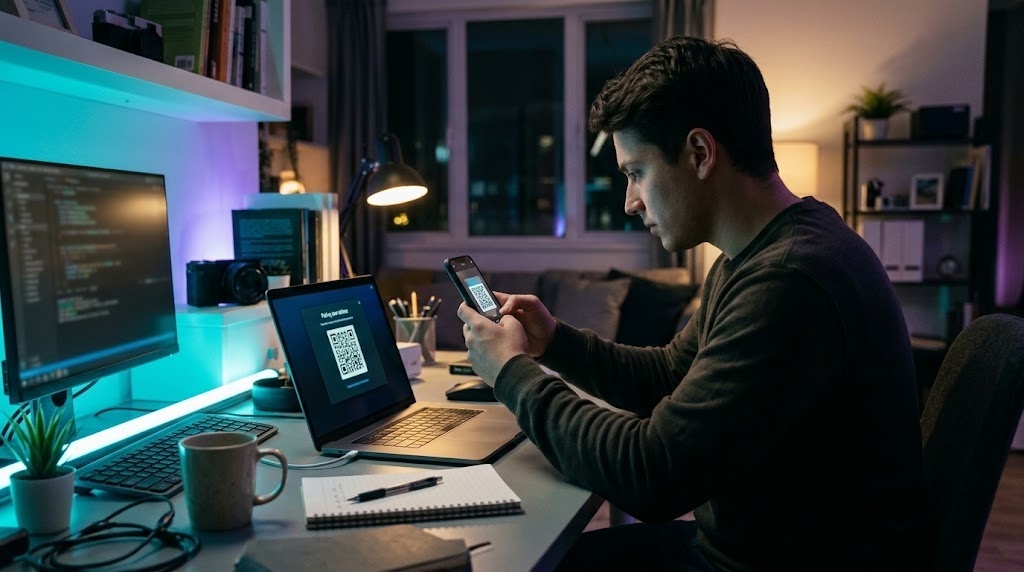
Open the web client on the computer, display its pairing QR code, then use the mobile app’s link-computer flow to scan and approve it. Only approve a QR code displayed on a computer you trust.
Open Linked Devices on the mobile app, select the computer, and choose Log Out. If you no longer recognize several devices, use the log-out-all option and link trusted computers again.
Do not approve it. Close the prompt and check your linked-device list. If you suspect account access, revoke sessions you do not recognize and contact support.
Open Chats, choose a contact or group, and send a message. The exact contact-discovery and invite options may differ between Android, iOS, and web.
Use the search control in the chat area to find conversations or matching text where search is available. Search results depend on the messages and chats accessible to your signed-in account.
Type @ in the message composer and select a person from the suggestions when the member picker is available. The selected mention is inserted into your message before you send it.
If scheduled-send options are enabled in your chat, choose Send After or Send Later, set the desired time, and review the scheduled message. Keep the app and account in good standing so the scheduled action can be processed.
Open the combined emoji, sticker, and GIF picker in the chat composer, choose the matching tab, then select an item to insert or send it. Available sticker and GIF collections can vary by client.
Supported attachment types depend on the client and current server configuration. Use the attachment menu to see the options available to you, and avoid opening files from people you do not trust.
Some conversations may offer a disappearing-message timer. When available, review the selected duration with everyone in the conversation; disappearing messages cannot prevent recipients from saving or capturing content.
Calling options are available in clients and deployments where real-time calling has been enabled. Start from the call controls in a conversation and grant microphone or camera access when prompted.
Picture-in-Picture keeps a small call view visible while you navigate elsewhere, on clients and devices that support it. You can return to the full call screen using the floating view.
Check that the app or browser has microphone and camera permission, that the correct devices are selected, and that no other application is blocking them. A weak network connection can also affect call quality.
Open Foots, choose the create or camera control, select or capture content, and review the audience controls before sharing. Creation tools and supported media formats can vary by platform.
The audience depends on the privacy setting selected when you share. Check the audience selector before posting and avoid sharing sensitive information in temporary media.
A viewer list may be available for a Foot while its view and retention window is active. Open the Foot and use its viewer control when shown.
No. A limited viewing period does not prevent someone from taking a screenshot, recording the screen, or capturing the content with another device. Share only what you are comfortable showing to its audience.
Open the Awake Alarms feature, set the alarm details, choose its recipient, and review the time and challenge settings before saving. The recipient may need to accept or sync the alarm on a supported client.
Check the device volume, notification and alarm permissions, battery restrictions, selected ringtone, and whether the alarm was received by the device. Operating-system policies and client support can affect background alarms.
A wake-up challenge is an optional confirmation step intended to help verify that the recipient interacted with the alarm. Available challenge types depend on the alarm settings and client.
Open Chama, choose the create-circle flow, enter the requested circle details, and invite members. Review contribution amounts, schedules, and member terms with the group before confirming.
Open a valid invitation from the circle organizer, review the membership and contribution terms, and accept if you agree. Contact the organizer if you do not recognize the invitation.
Open the circle details to review the ledger, contribution status, and payout schedule shown by your client. Confirm important payment details with the circle and retain the provider receipt for completed transactions.
When a supported payment flow sends a prompt to your phone, verify the payee and amount on the prompt before entering your M-Pesa PIN. Never share your PIN or approve a payment you did not initiate.
Check the payment status in the app and confirm whether your mobile-money provider sent a receipt. Do not repeat a payment until you have checked its status; contact support or the circle organizer with the transaction reference if it remains unresolved.
Use the poll option in a supported group conversation, enter the question and choices, then review any closing time or voting options before posting.
Anonymity depends on the poll settings shown when it is created. Check those settings before voting and do not assume a poll is anonymous unless the poll explicitly says so.
Twin Chat is a private paired conversation experience for two linked participants. Pairing and available shared features depend on the current client and account settings.
Use the Twin settings available in your client to review or end a pairing. Make sure you understand how leaving affects shared access and history before confirming.
ChildUse Mode provides guardian-managed account settings intended to support a safer experience for a child. A guardian should review permitted contacts, time settings, and other controls with the child.
No. In-app SOS or guardian notifications may depend on connectivity and configured contacts. In an immediate emergency, contact local emergency services directly.
Review the app permissions in your device or browser settings. Grant only the permissions needed for features you use, and revoke them whenever you no longer want the client to access that capability.
Use the contact or conversation menu to look for block or report controls where they are available. Include relevant details when reporting, and contact support if you feel unsafe.
Install NexifyUp on your replacement device and follow the supported phone verification and account recovery steps. Recovery options depend on your account setup; never share verification codes or recovery credentials with another person.
A recovery guardian is a trusted person who may assist with an account recovery flow when that feature is configured. Choose someone you know and understand the permissions before sending or accepting an invitation.
Feature availability and controls can differ by platform, app version, and server configuration. Update your client and check its menus for the features currently supported on that device.
A web session may disconnect after a network interruption, browser sleep, session expiry, or remote sign-out. Refresh the page and pair the browser again if prompted.
Use the Contact page linked below this FAQ and include your app version, device or browser, and a description of the issue. Do not include your password, app PIN, verification code, or payment PIN.
No matching questions found.
Install NexifyUp
Signal Double Ratchet QR Sync
Scan with Camera or App
Instantly install on Android (.APK / Play Store) or iOS TestFlight.